SSH Key
When you run PMM Server as a virtual machine (AMI or OVF), you can upload your public SSH key to access the server via SSH and manage or troubleshoot it directly.
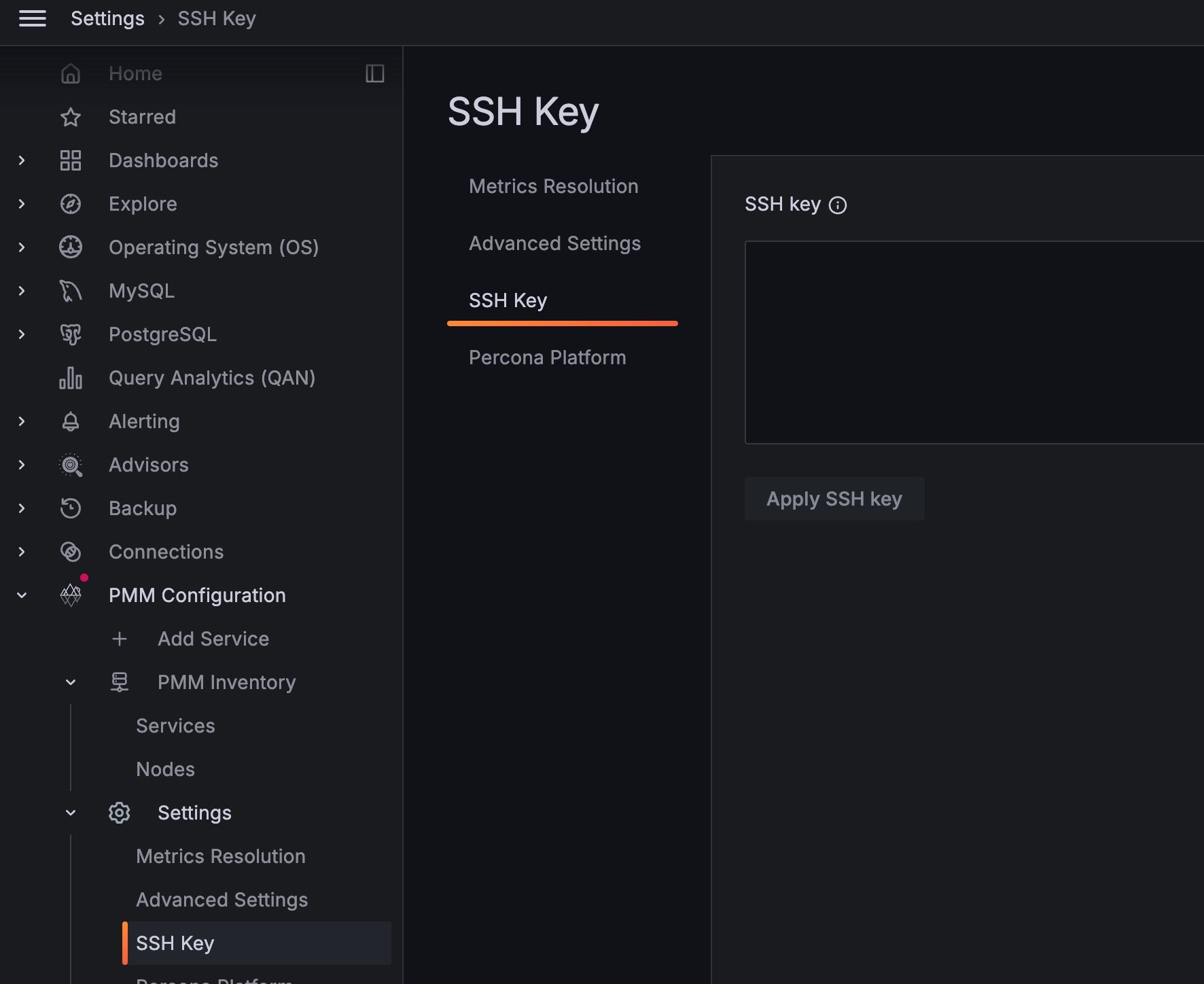
Configure SSH access
To configure SSH access:
- Enter your public key in the SSH Key field.
- Click Apply SSH Key.
This adds the key to the virtual machine so you can connect to your PMM Server instance via SSH.
For more information on virtual machine deployments, see virtual appliance index.md.
Connect via SSH
Once your public key is configured, you can connect to your PMM Server using SSH:
Using SSH with a private key
Connect to your PMM Server using the admin user and your private key:
ssh -i your-private-key admin@<pmm-server-ip>
where:
your-private-keyis the path to your private key file (can be.pem,.key, or no extension)<pmm-server-ip>is your PMM Server’s IP address or hostname- The username is always
adminfor PMM virtual machine deployments
Examples
ssh -i ~/keys/my-aws-key.pem admin@ec2-203-0-113-42.compute-1.amazonaws.com
ssh -i ~/.ssh/pmm_key admin@192.168.1.100
If your private key is in the default location (~/.ssh/id_rsa or ~/.ssh/id_ed25519), you can omit the -i flag:
ssh admin@<pmm-server-ip>